Helpdesk
You can automate replying messages received through the "Contact Us" form using the "Helpdesk" feature.
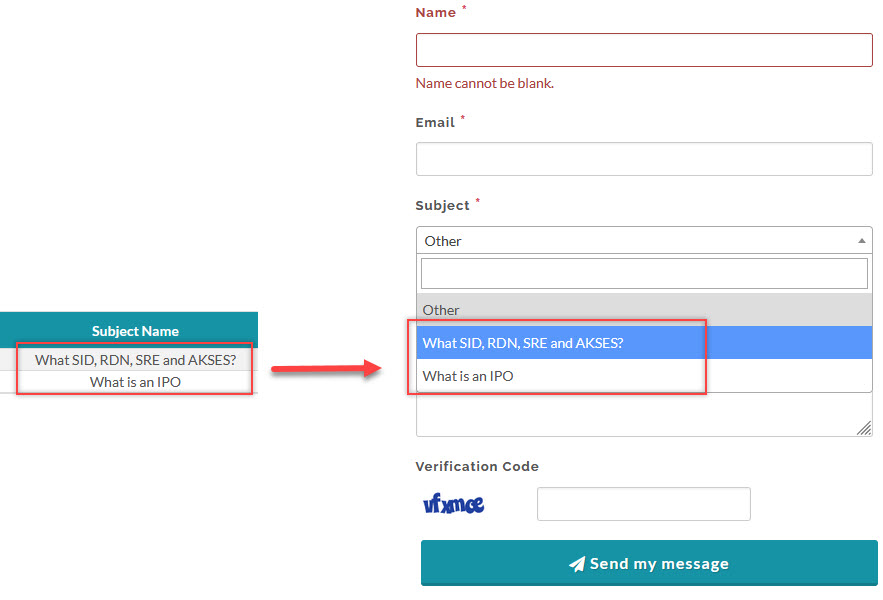
When users write a message on the "Contact Us" form, they can select the subjects available in a drop-down menu, the application will then respond via email to the user with a pre-written message tailored to the selected subject. This functionality is valuable for addressing commonly asked general questions.
To create an automated email respond you need to first create a tag, create subject and assign tag(s) to it, you also need to create the email header and footer. Follow the steps below for more details:
Add Tag
- From the Page Menu: Go to Setting > Helpdesk > Tag > +Tag.
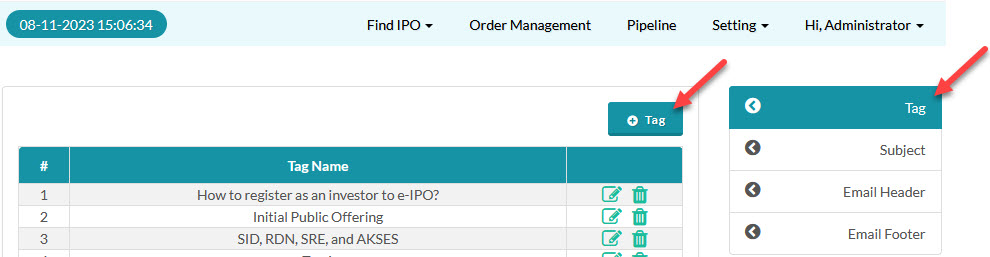
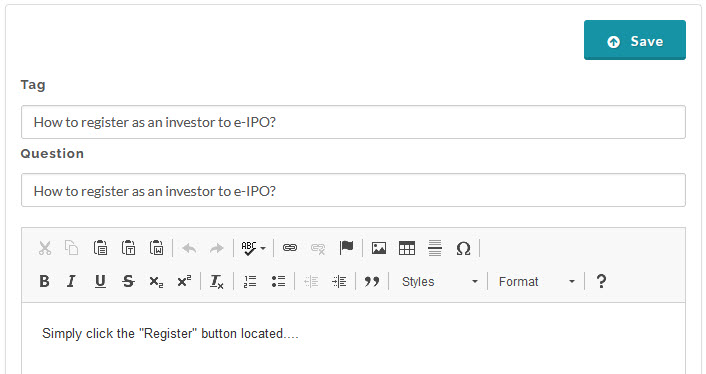
- Input the tag information and click Save.
Add Subject
- From the Page Menu: Go to Setting > Helpdesk > Subject > +Subject.
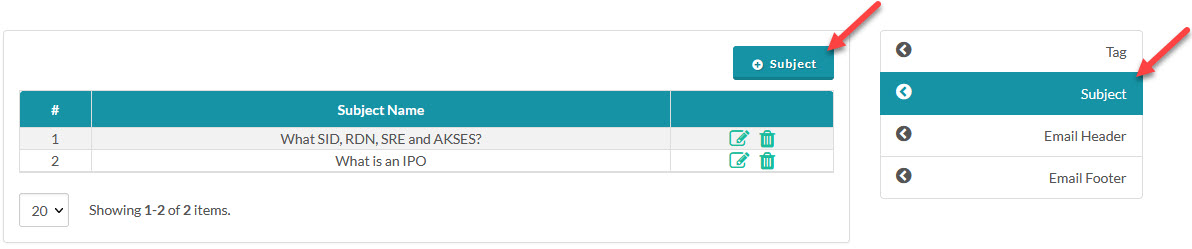
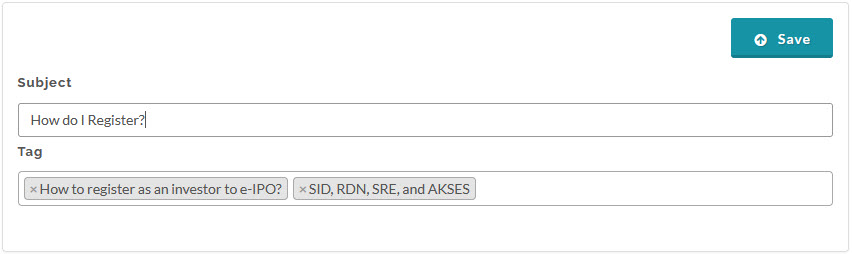
- Input the subject information and click Save. The saved Subject will appear on the drop-down menu in the Contact Us form.
Email Header and Footer
- From the Page Menu: Go to Setting > Helpdesk > Email Header/Email Footer.
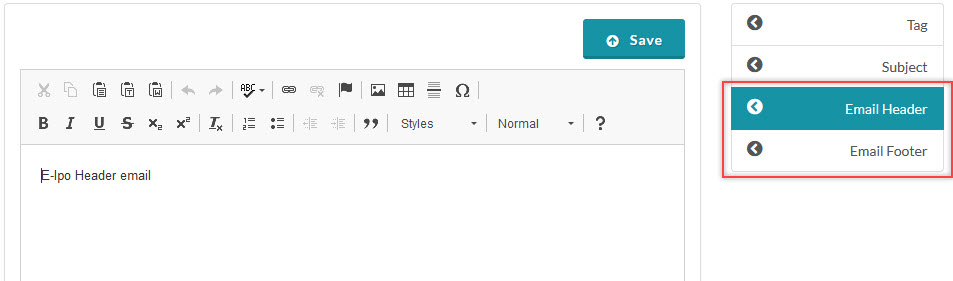
- Input the header/footer text in the text editor and click Save.
Created with the Personal Edition of HelpNDoc: Make Documentation Review a Breeze with HelpNDoc's Advanced Project Analyzer