Role Based Access Control (RBAC)
Role-Based Access Control (RBAC) enables the assignment of permissions to users based on their roles.
- A user, in this context, refers to a person using the application who requires access to a specific resource or route.
- A role, on the other hand, serves as a categorization of users with identical permissions to access any resource or route.
- Permission determines whether a role is allowed access to which resource or route.
In the Electronic Public Offering application, you have the ability to manage each role's access to resources or routes by allowing or denying permissions.
The contents of Calendar
Add Role
To create a new Role, from the Page Menu:
- Go to Setting > RBAC.
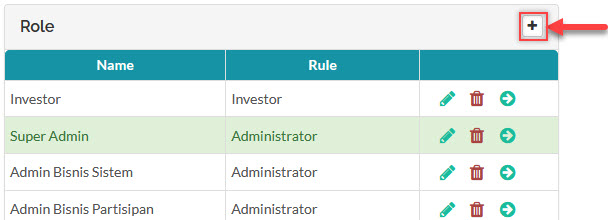
- On the Role panel, click the
 icon.
icon.
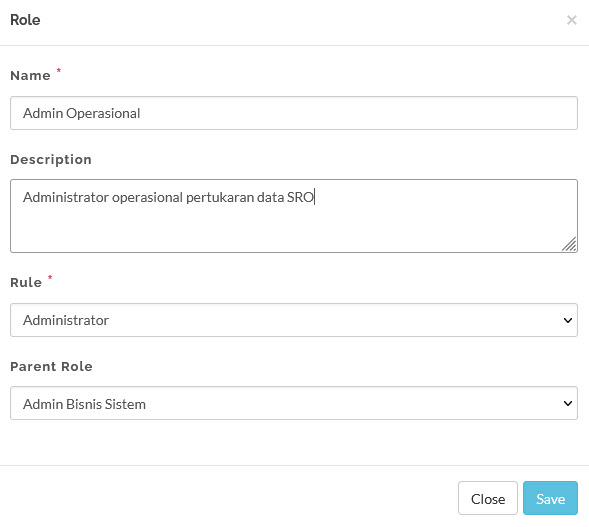
- Fill in the following fields in the input form:
Name: name of the role.
Description: description of the role.
Rule: there are four fixed main rules, they are Administrator, OJK, Investor, and Security Broker.
Parent Role: this is determined by the type of Rule, the Parent Role serves as the "template" of permissions of the created role.
- Save the new Role to set the permission.
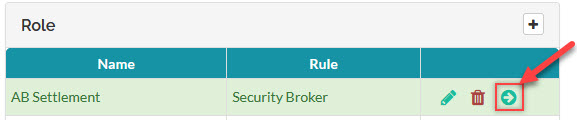
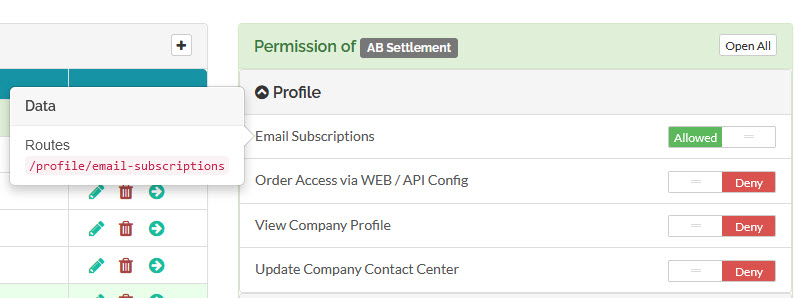
Each feature in the Permission panel corresponds to the routes the user with the role can/can not access. For example in the screenshot below, the feature "Email Subscriptions" corresponds to the route /profile/email-subscriptions, set it to  to allow or
  to deny permission to that route.
Delete Role
To delete a Role, from the Page Menu:
- Go to Setting > RBAC.
- Select the role and click
 .
.
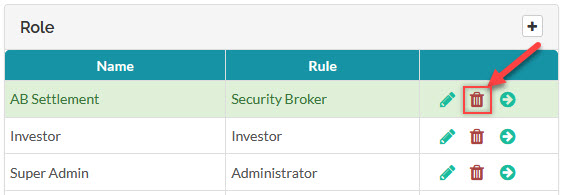
 Users with a deleted role will lose all permissions associated with the that role, i.e. if you delete a role and there are still users with that role then those users will loose/denied access of all the routes allowed to them in the deleted role.
Created with the Personal Edition of HelpNDoc: Produce electronic books easily