Upload Modified Order
You can modify multiple orders (amend, approve, reject, drop/cancel) using Excel. To do this, download the Excel file of the orders you want to modify, edit the orders in Excel, and then upload the file back to E-IPO.
To modify orders:
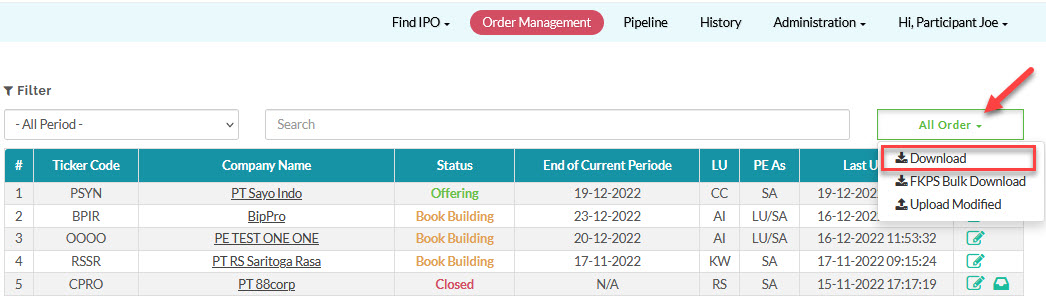
- Go to Order Management >All Order > Download.
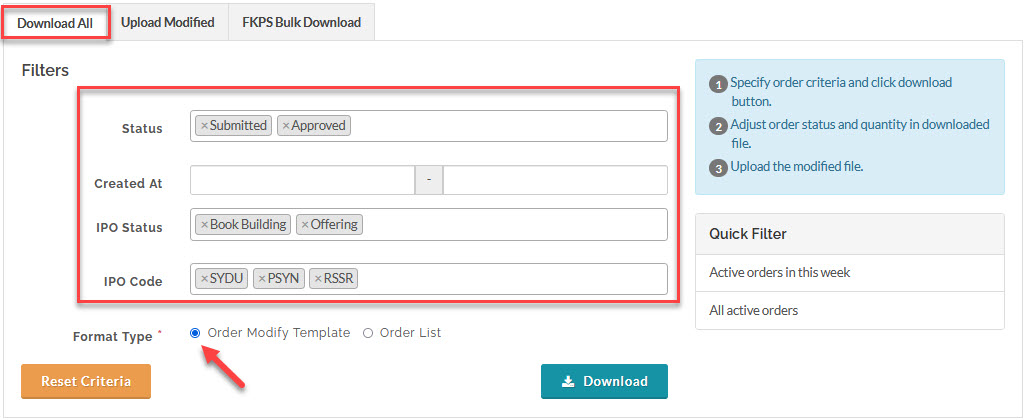
- In the Download All tab, specify the order criteria (filter parameters) for the orders you want to download, check the Order Modify Template radio button, and click Download. E-IPO will generate and send the file containing the filtered orders. Save the file to your computer.
 You can use the Quick Filter to download all active orders or all active orders within the current week. Active orders are those with the statuses Submitted, Approved, and Proposed for IPOs within the Book Building and Offering periods.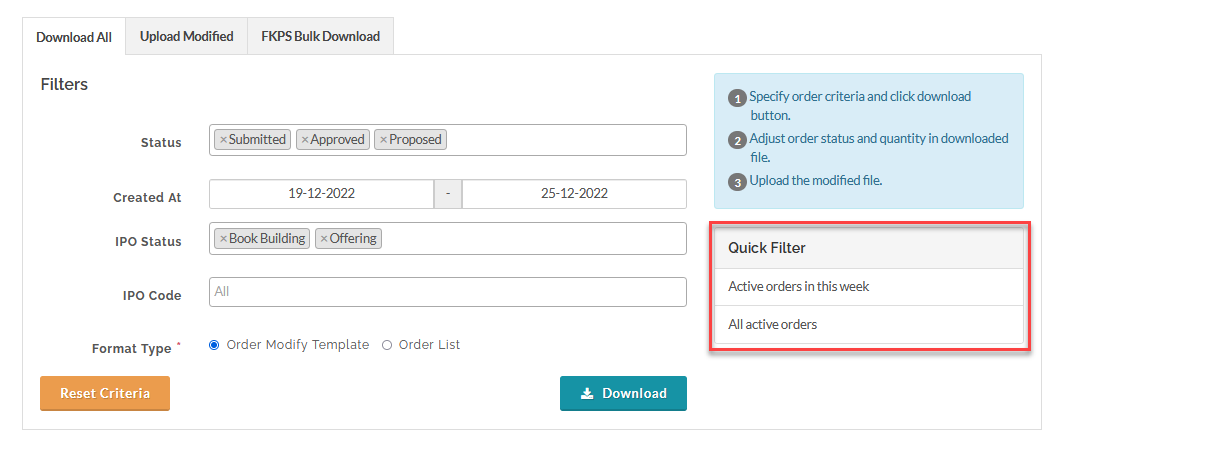
- Modify the orders in the Excel sheet by editing one or more of the following columns: Quantity, Status, or Reason.

Use the table below to determine the required input values to modify the orders.
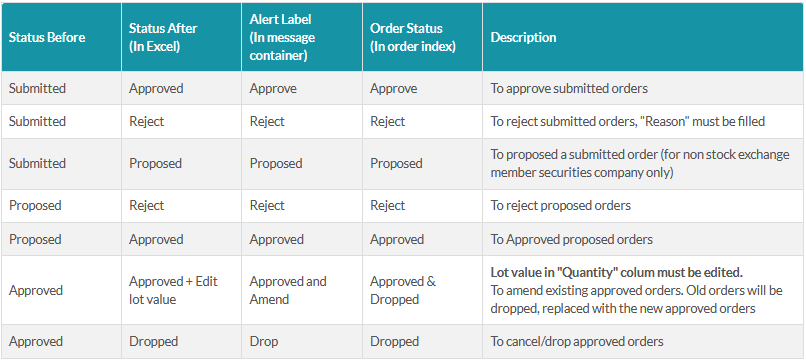
 When you upload the modified order (Excel file), any combinations other than those listed under "Status Before" and "Status After" in the table above will have the Alert Label
  upon upload, and the corresponding orders will not be saved.
- Save and upload the Excel file. In the Upload Modified tab, upload the file and click Upload & Process.
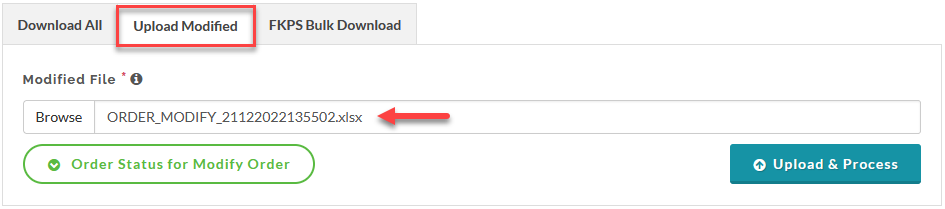
If the upload is successful, you will get the status alert label for each order and "Your data processed successfully" notification in the alert message container.

Created with the Personal Edition of HelpNDoc: Why Microsoft Word Isn't Cut Out for Documentation: The Benefits of a Help Authoring Tool