You can import multiple orders to e-IPO in bulk from a Microsoft Excel file.
To import order, from the Page Menu:
- Go to Order Management.
- Select IPO > View
 > Import.

- Download the template provided.

- Input the order information in the Excel template.

- Save the file and import it by clicking Browse to choose the file and click Import.

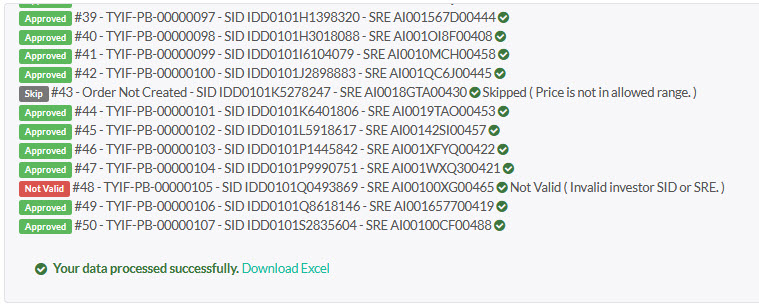
After you import a message container will show you the results of the validated orders.
|
 Importing Orders: Importing Orders:
- You can exclusively import Microsoft Excel files in the .xlsx format, and it is mandatory to use the provided template when importing.
- The fields specified in the template's header row correspond directly to the fields in the e-IPO Place Order Form. It is not possible to manually rearrange or match fields within the template.
- Please note that importing is only permitted for creating new orders; to amend or cancel existing orders use the Upload Modified Order feature.
- Order timestamps are given in ascending order from top to bottom row (the first row from the top gets the earliest timestamp).
- There is a maximum limit of 10,000 orders per import.
- e-IPO will validate the imported orders one by one in sequential order, starting from the top row moving downward. If an order is found to be invalid, e-IPO will skip it and continue to validate the subsequent order.
|
Created with the Personal Edition of HelpNDoc: Transform your help documentation into a stunning website