Queue Monitoring
The Administrator can monitor the application's background processes in the Queue Monitoring menu. The Queue Monitoring monitors the statuses of the Jobs queued for execution. A Job is a predefined task executed by the application to fulfill the application's functions. The different types of Jobs are categorized by prioritization and is called a Queue. A Job that has been created in a Queue can also be pushed manually by the administrator.
For user with Administrator role only.
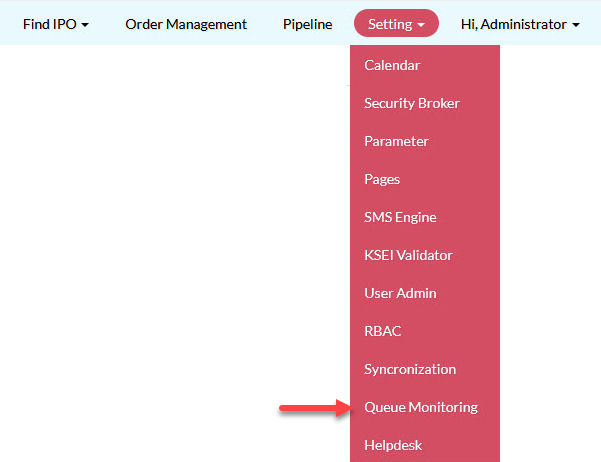
To monitor the queues, from the Page Menu, go to Setting > Queue Monitoring.
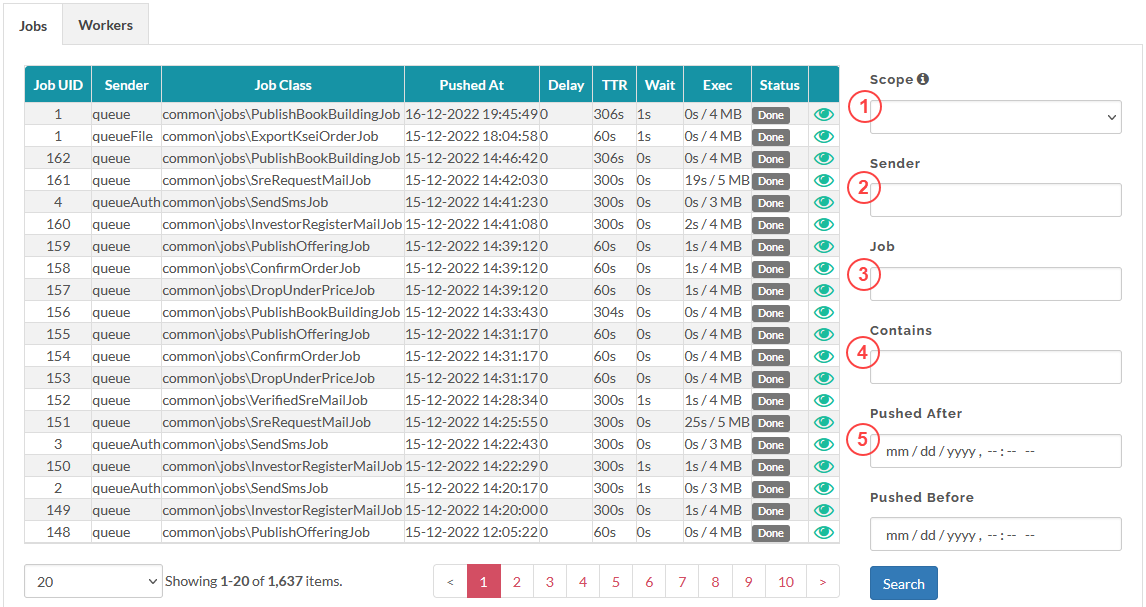
1 - Scope or job Status
2 - Sender, filter by type of Queue, see list below
3 - Job, Filter by Job Name, see list below
4 - Search Push Context
5 - Filter by job pushed at date and time
Here is a list of the Jobs and Queues in E-IPO.
|
Type of Queue |
Job Name |
Description of Job Execution |
|
queue |
PublishBookBuildingJob |
Publish IPO to Book Building |
|
ApprovePoolOrderMailJob |
Send approved pool order email notification to investor |
|
|
FixedOrderMailJob |
Send approved fixed order by participant email notification to investor |
|
|
PoolOrderMailJob |
Send submitted pool order by participant email notification to investor |
|
|
NotificationOrderMailJob |
Send submitted pool order by investor email notification to participant |
|
|
InvestorRegisterMailJob |
Send investor registration authentication email notification to investor |
|
|
PublishOfferingJob |
Publish IPO to Offering |
|
|
ConfirmOrderJob |
Confirm prospectus |
|
|
DropUnderPriceJob |
Drop under priced order (Book Building order not carried-over to Offering) |
|
|
CancelIpoMailJob |
Send canceled IPO email notification to investor |
|
|
CancelIpoJob |
Publish IPO to Canceled |
|
|
VerifiedSreMailJob |
Send authenticated SID SRE email notification to investor |
|
|
DropSubmittedOrderJob |
Drop submitted order made by investor when IPO is published to allotment |
|
|
DropUnconfirmOrderJob |
Drop unconfirmed order when IPO is published to allotment |
|
|
DropUnconfirmOrderMailJob |
Send drop unconfirmed order email notification to investor |
|
|
DropOrderOutsideBookPriceRangeJob |
Drop Book Building order if order price is outside the new price range |
|
|
SreRequestMailJob |
Send investor request authentication email notification to participant. Send investor request authentication confirmation email notification to investor |
|
|
queueAuth |
LoginMailJob |
Send login authentication email to participant |
|
SendSmsJob |
Send SMS to investor or participant |
|
|
ResetPasswordMailJob |
Send reset password authentication email to investor or participant |
|
|
UpdateEmailUserBrokerMailJob |
Send participant request to update participant email or phone number email notification to participant |
|
|
BrokerUpdateEmailInvestorMailJob |
Send participant request to update investor email or phone number email notification to investor |
|
|
queueBroadcast |
PublishIpoMailJob |
Send publish IPO to Book Building or Offering email notification to all users |
|
PublishUpdateIpoBookPeriodPriceJob |
Publish new Book Building period |
|
|
PublishUpdateIpoBookPeriodPriceMailJob |
Send new Book Building period and price range email notification to all users |
|
|
PublishUpdateIpoOfferingPeriodJob |
Publish new Offering period |
|
|
PublishUpdateIpoOfferingPeriodMailJob |
Send new Offering period email notification to all users |
|
|
DropOrderOutsideBookPriceRangeMailJob |
Send email notification to all users |
|
|
DropUnderPriceJob |
Send email notification to all users |
|
|
DropUnderPriceMailJob |
Send drop Book Building order if order price is outside the new price range email notification to investor. |
|
|
queueFile |
ExportAuditTrailJob |
Generate and export Audit Trail file |
|
ExportAllotmentOrderJob |
Generate and export validated order by KPEI file |
|
|
ExportBookbuildingOrderJob |
Generate and export Book Building order file |
|
|
ExportFinalOrderJob |
Generate and export final (allotted) order file |
|
|
ExportKseiOrderJob |
Generate and export order for KSEI report file |
|
|
ExportOfferingOrderJob |
Generate and export Offering order file |
|
|
ExportOrderJob |
Generate and export order file (order management) |
|
|
DownloadAllOrderJob |
Generate and export all order file (for upload modify order) |
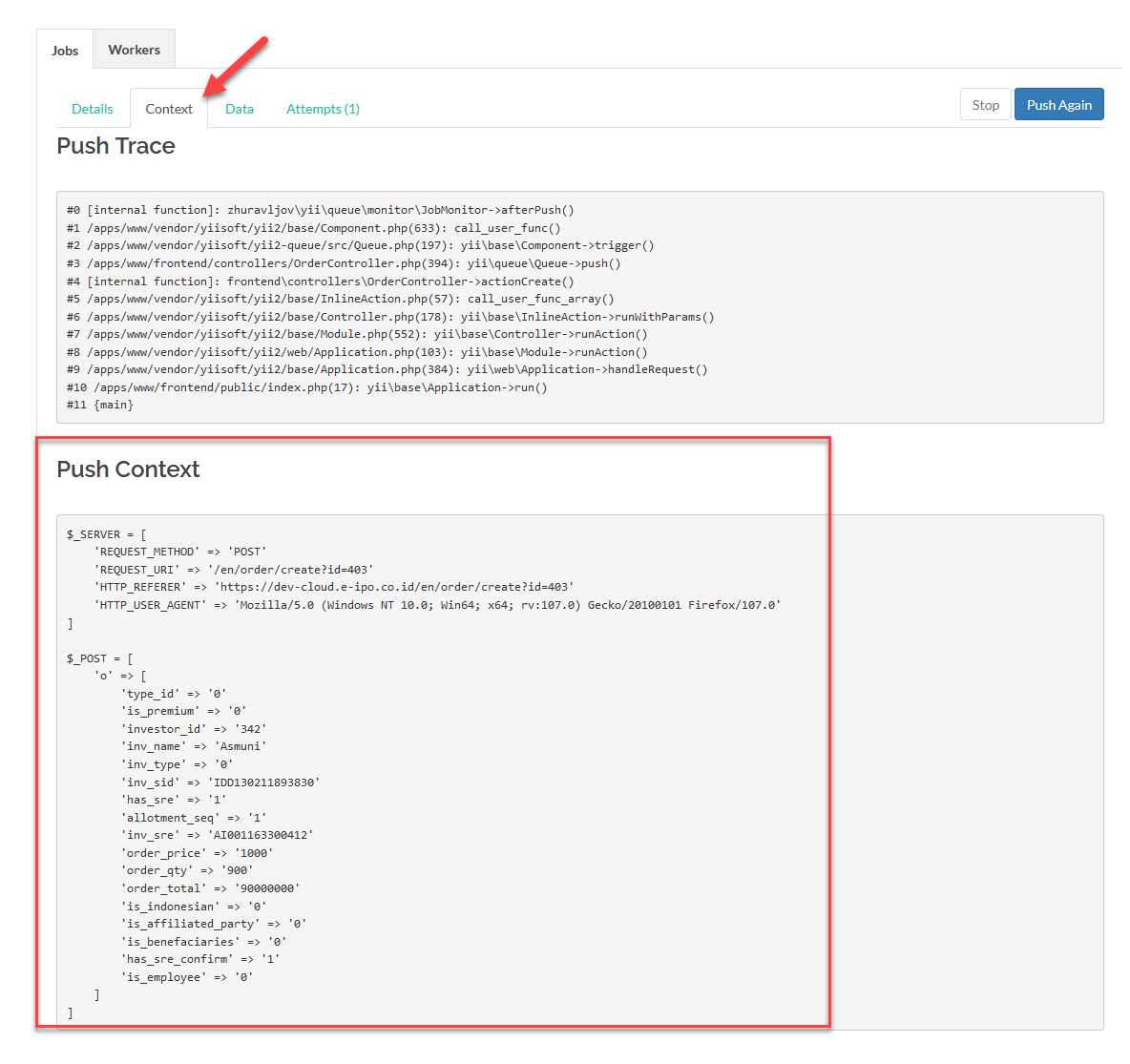
 You can check out the Push Context to get more information on a Job. To check the context, select a job and click View
  and go to the Context tab.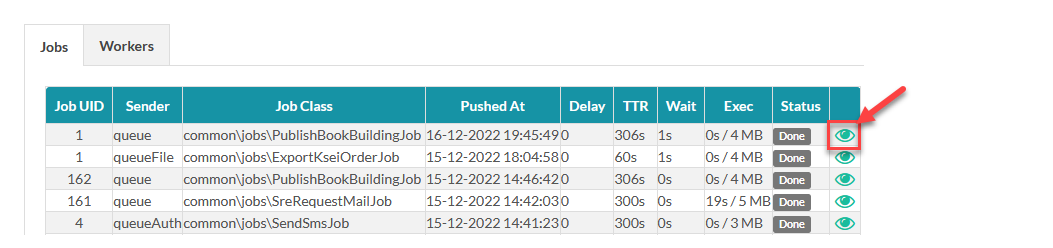
Created with the Personal Edition of HelpNDoc: Free HTML Help documentation generator